How to use the EstatesCheck tenant portal
Quick answer
Sign in with the account connected to your landlord’s invitation, review the dashboard, confirm your rental and profile information, then use the focused navigation for payments, requests, messages, and documents.Sign in to the tenant portal
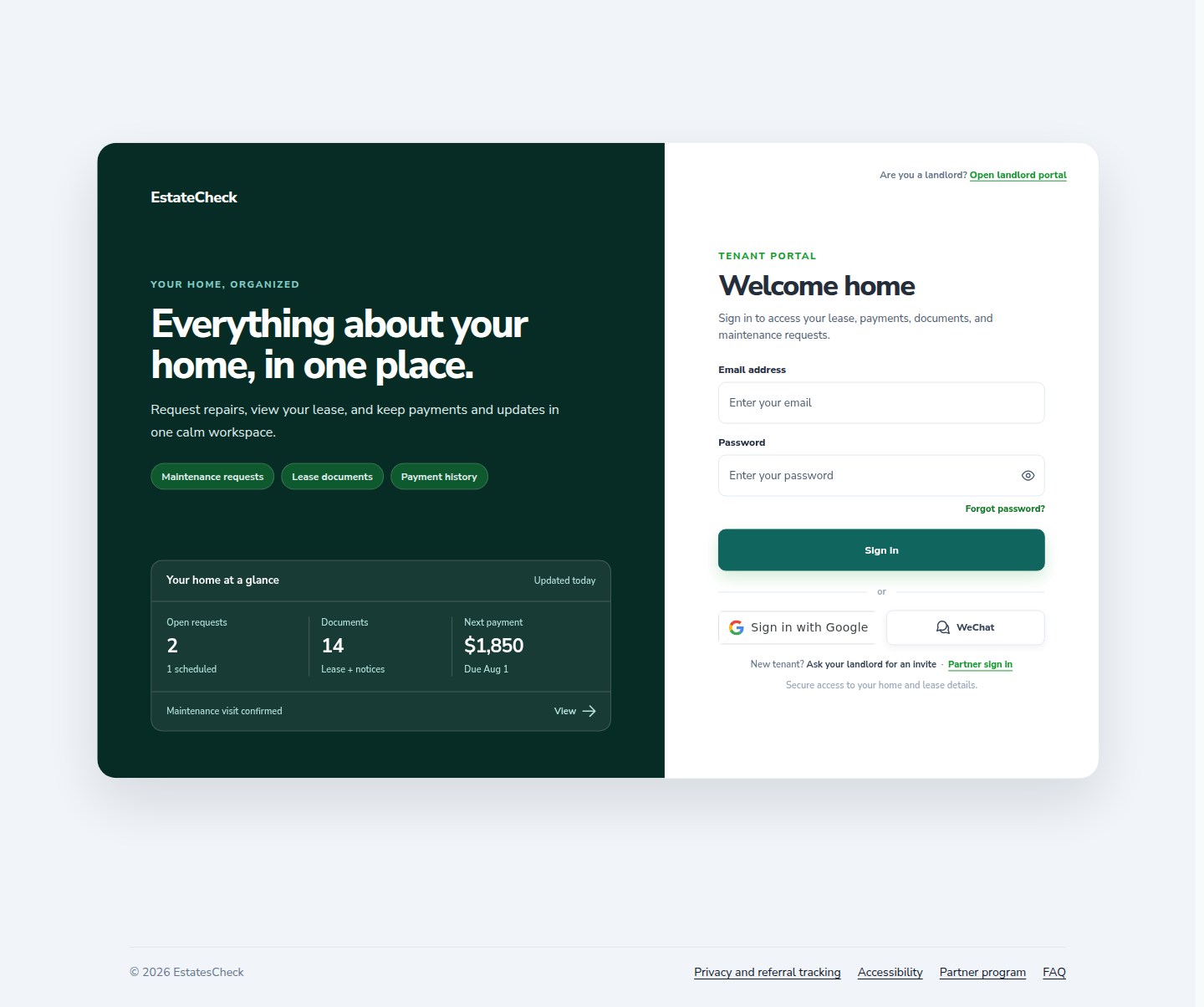
Open the tenant sign-in page and use the account connected to your rental invitation. Use Forgot password if you cannot access the account.
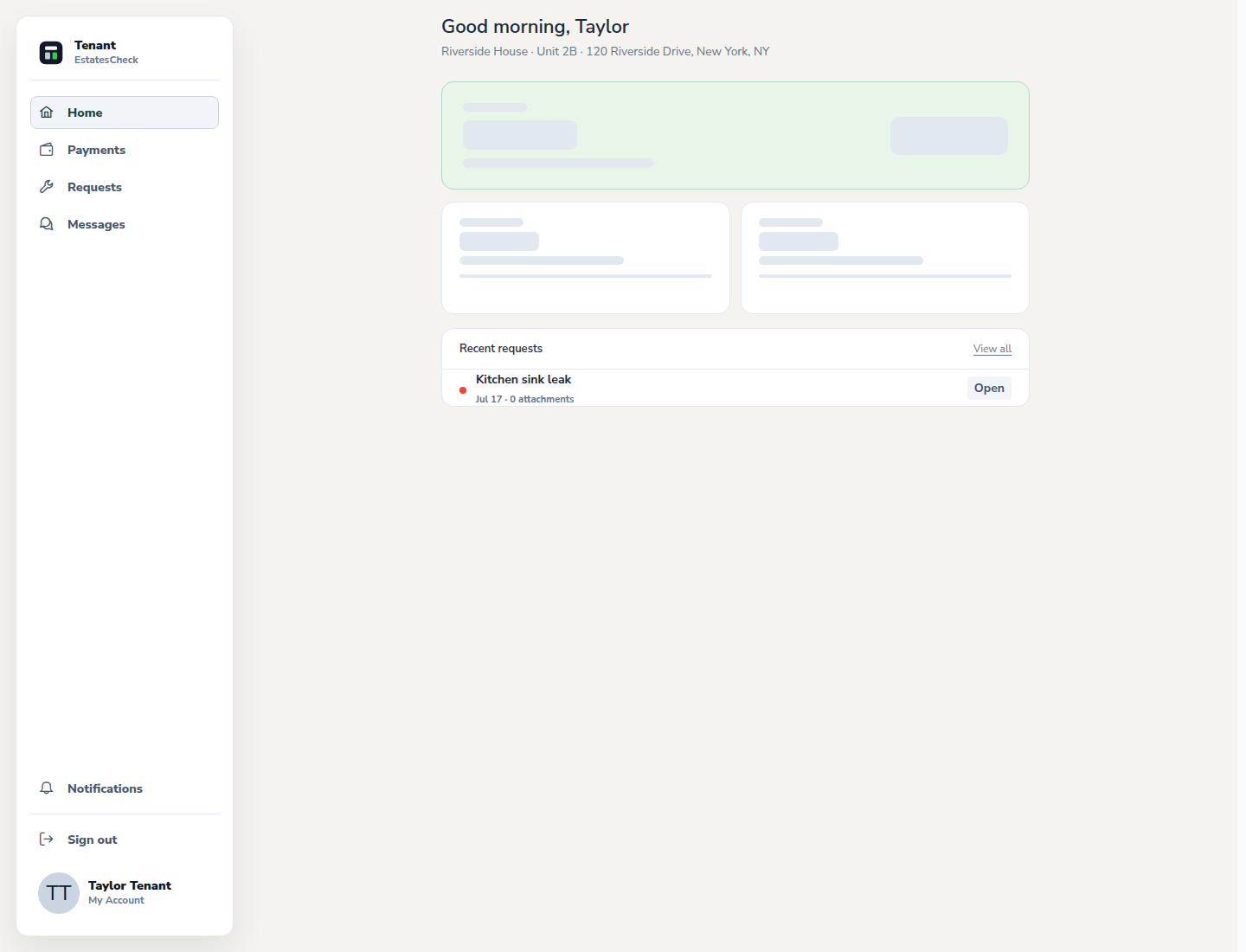
Review the tenant dashboard
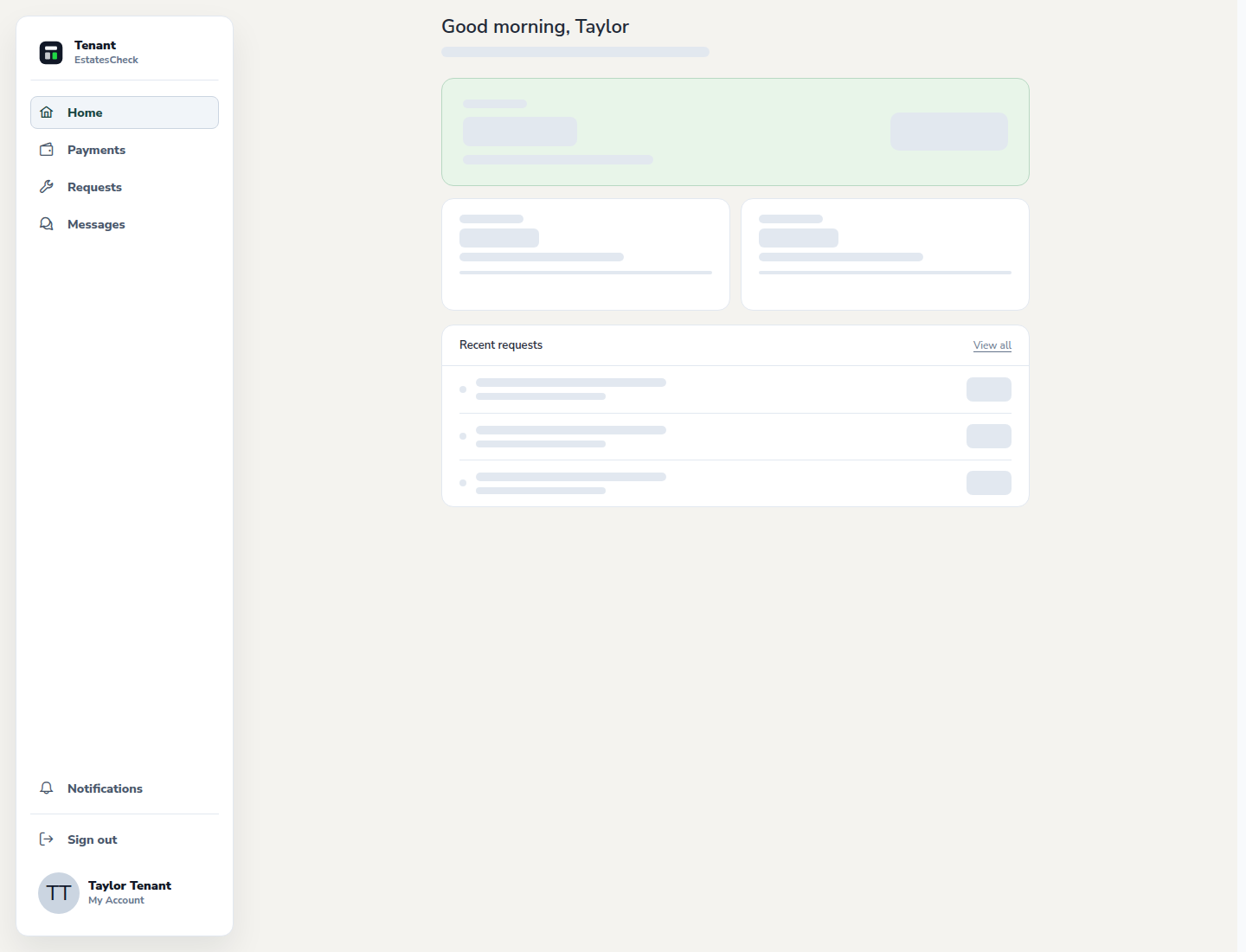
Use the dashboard to check the rental context and the next available actions for rent, maintenance, messages, and shared documents.
Verify the rental information
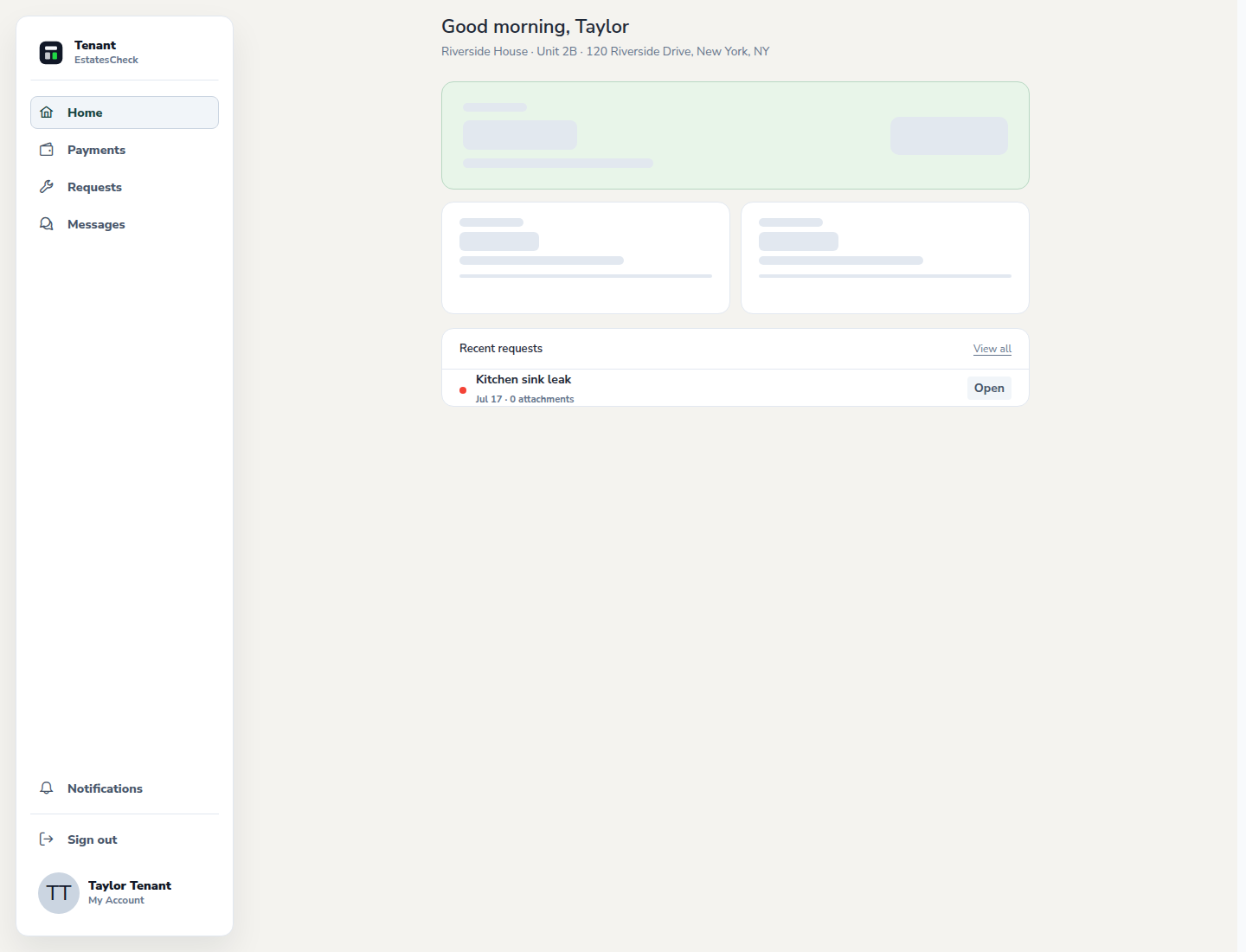
Confirm that the landlord, property, unit, and lease context shown belong to your rental. Report an incorrect relationship through a trusted support or landlord channel.
Review your tenant profile
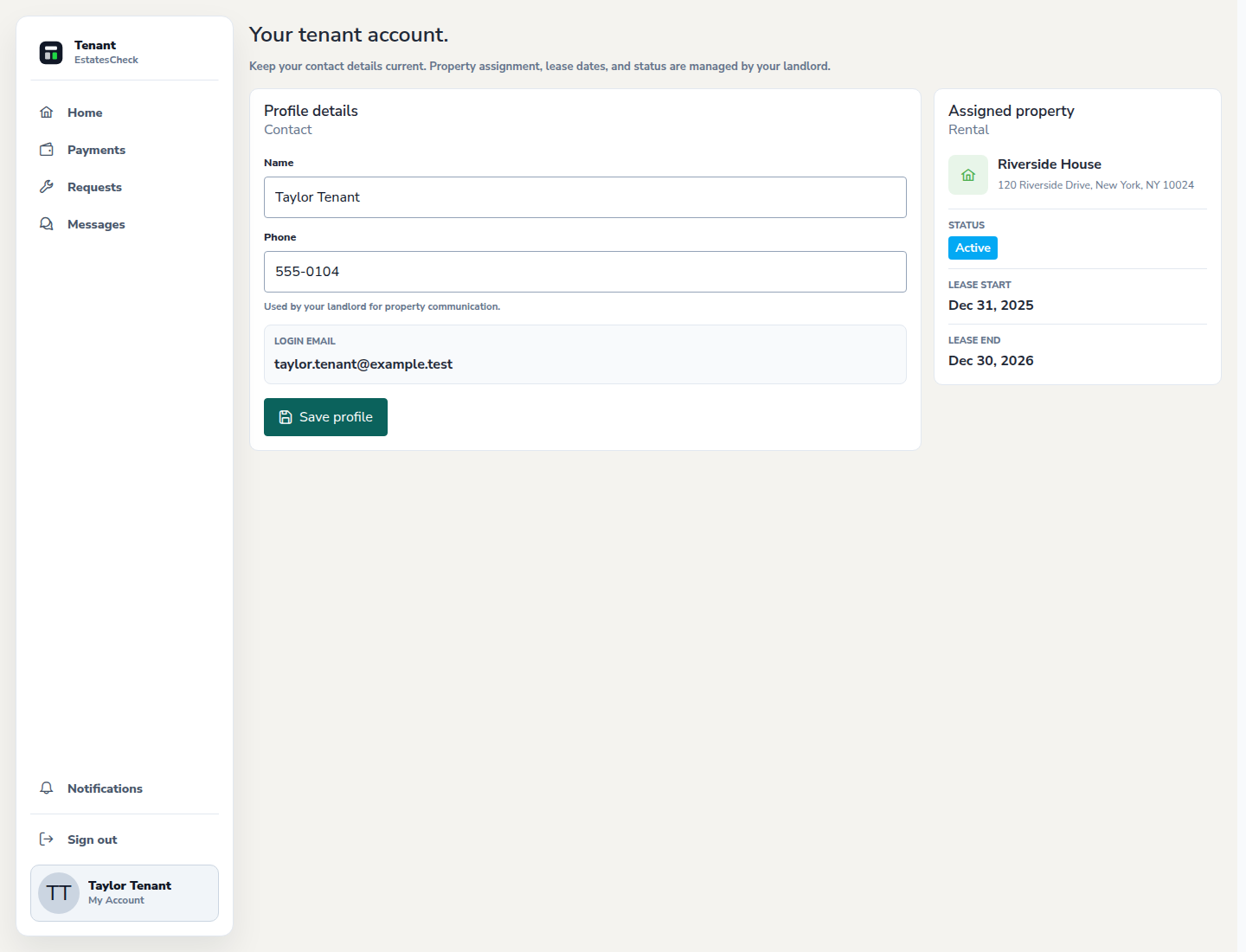
Open Profile and keep the contact information used for the rental relationship current.
Use the focused tenant sections
Open Payments for rent activity, Requests for maintenance, and Messages for landlord conversations. Files connected to your tenant account and repair workflows are kept in the separate tenant document area.
Common questions