How to manage the property calendar
Quick answer
Use Calendar to create a dated event, connect it to the right property, filter the schedule, and maintain pickup availability without mixing unrelated rental records.Open the calendar and review existing events
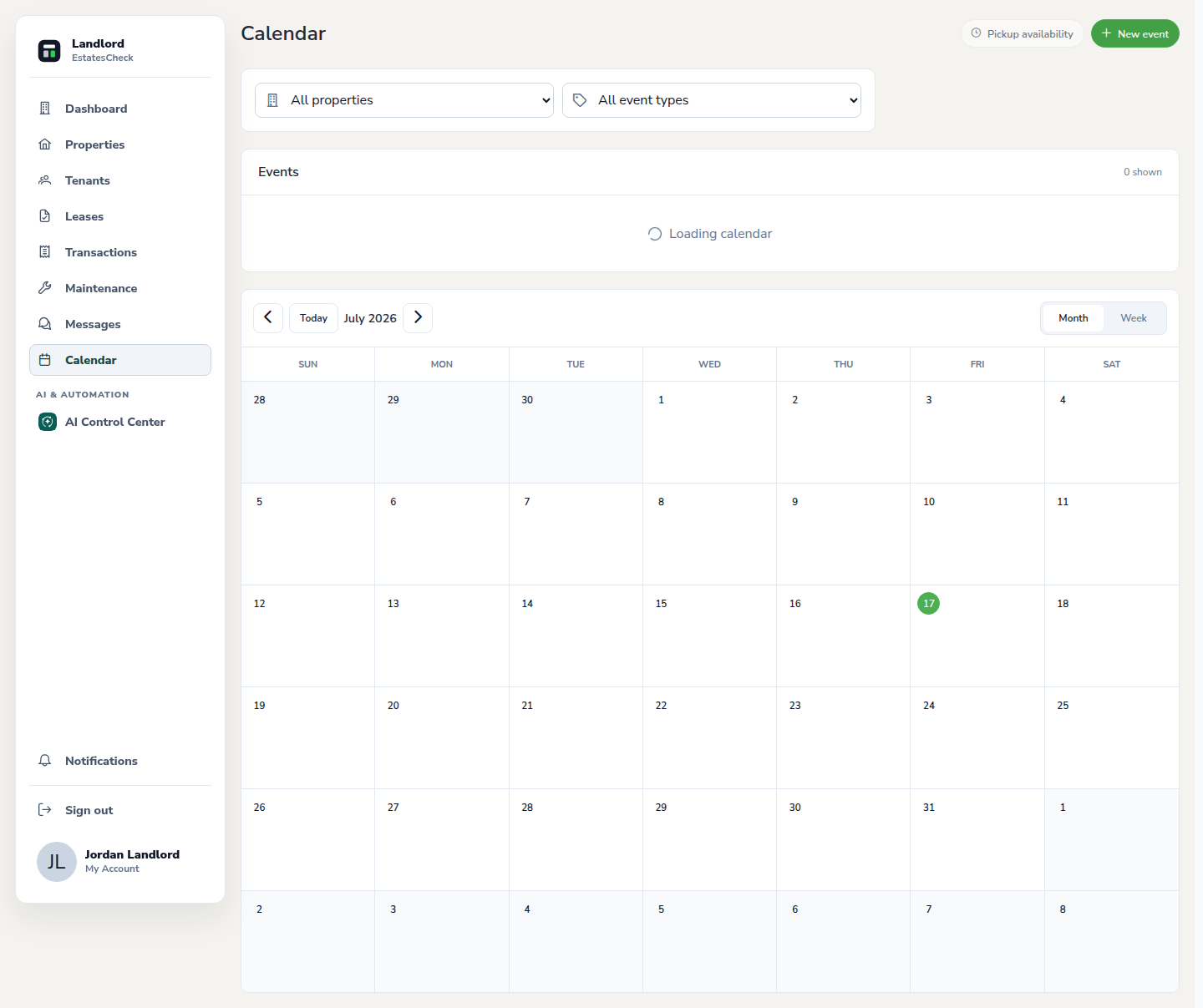
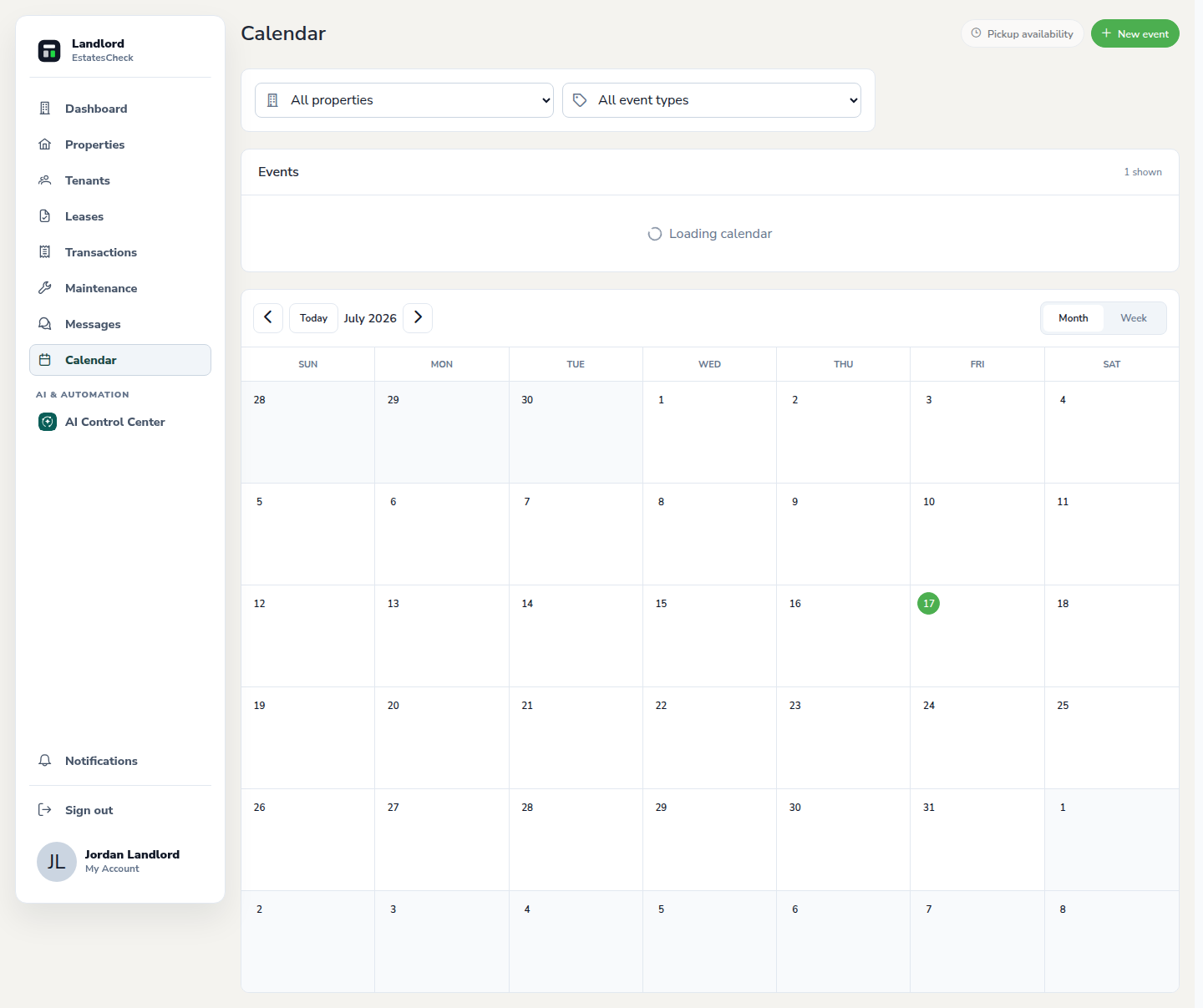
Choose Calendar and check the current schedule before adding another event.
Create a property event
Select New event, enter a specific title, choose the property, set the date and time, and add only the notes needed to understand the appointment.
Filter the schedule
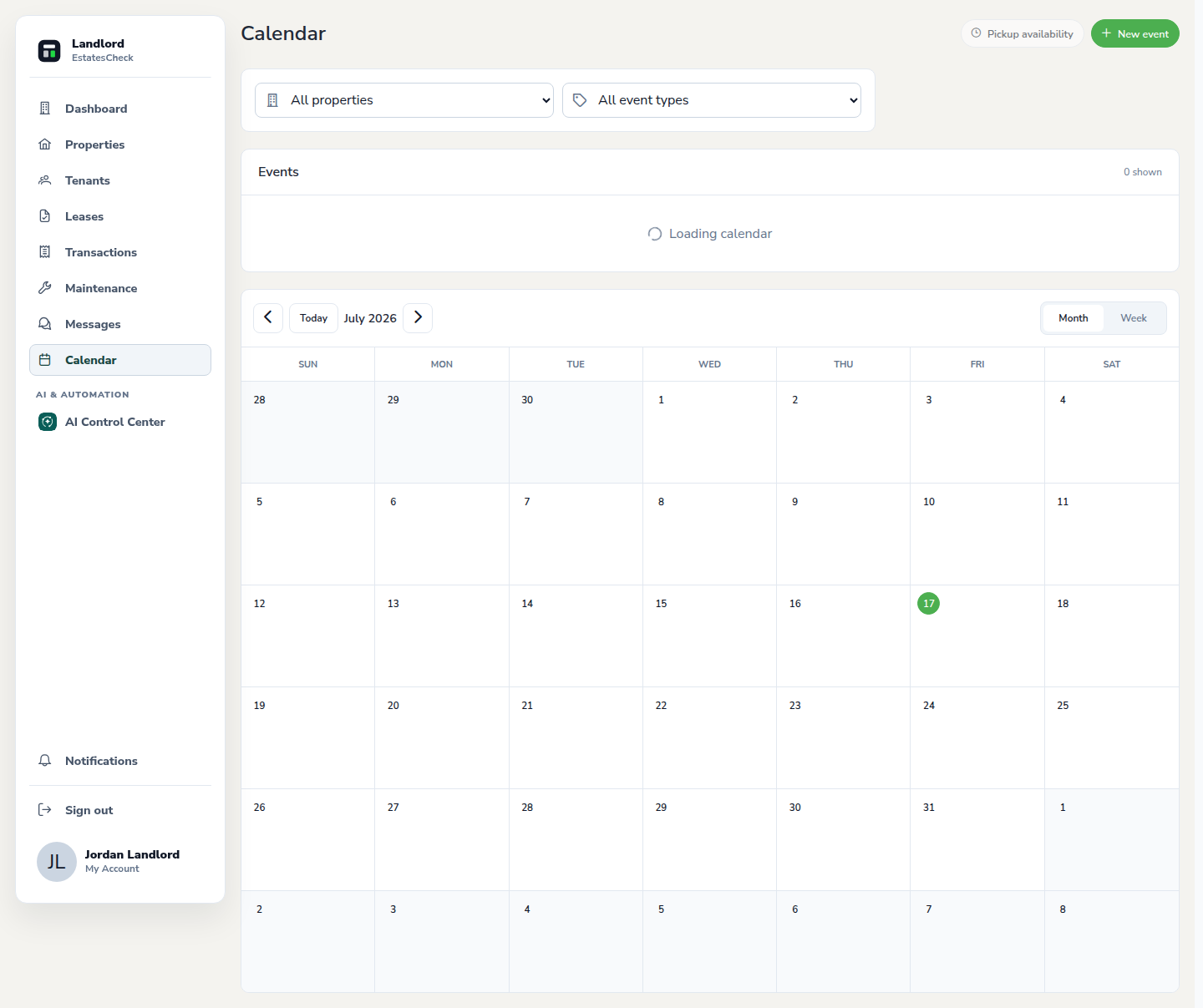
Use the property and event-type filters to focus the calendar on the work you are planning. Reset filters to return to the complete portfolio schedule.
Keep dates current
Update or remove an event when plans change, then communicate the change to affected tenants or vendors through the appropriate channel.
Manage rent pickup availability
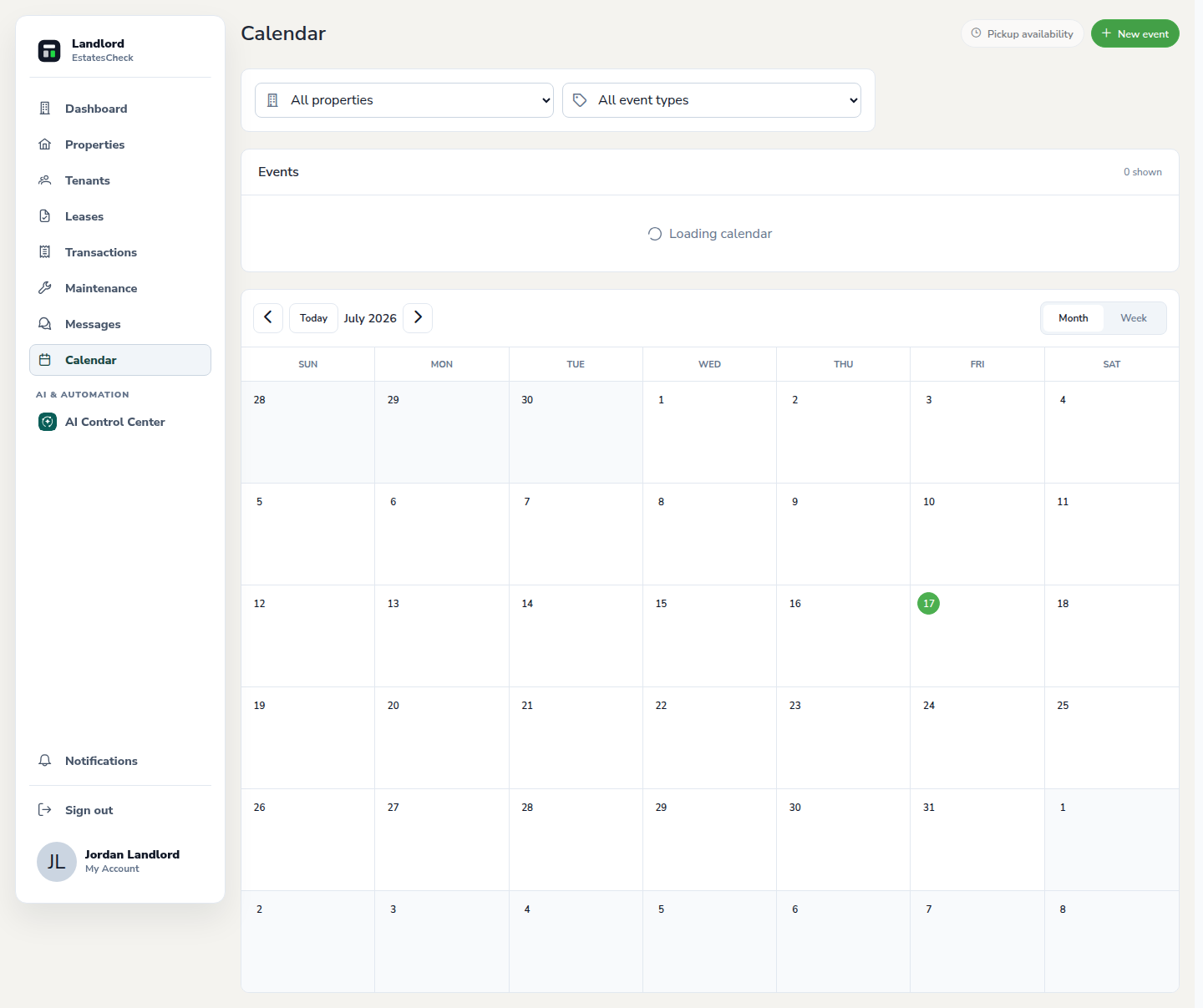
Use Pickup availability for the specific dates and times tenants may request an in-person pickup. Remove windows you can no longer honor.
Common questions