How to connect and control AI access
Quick answer
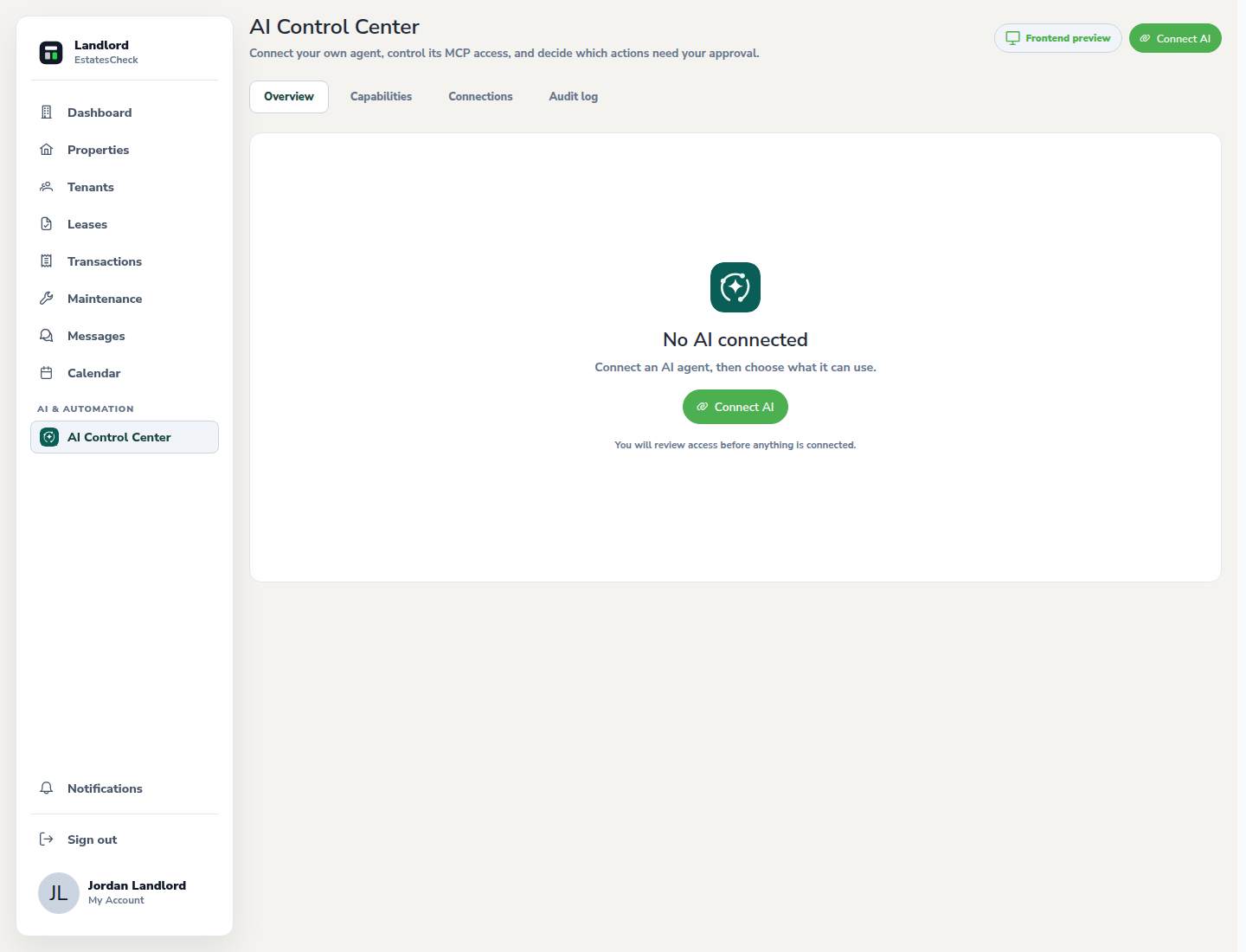
Open the AI connection flow, review exactly what is being authorized, complete the connection, then use the AI Control Center to inspect permissions, activity, approvals, and disconnection controls.Open the AI connection flow
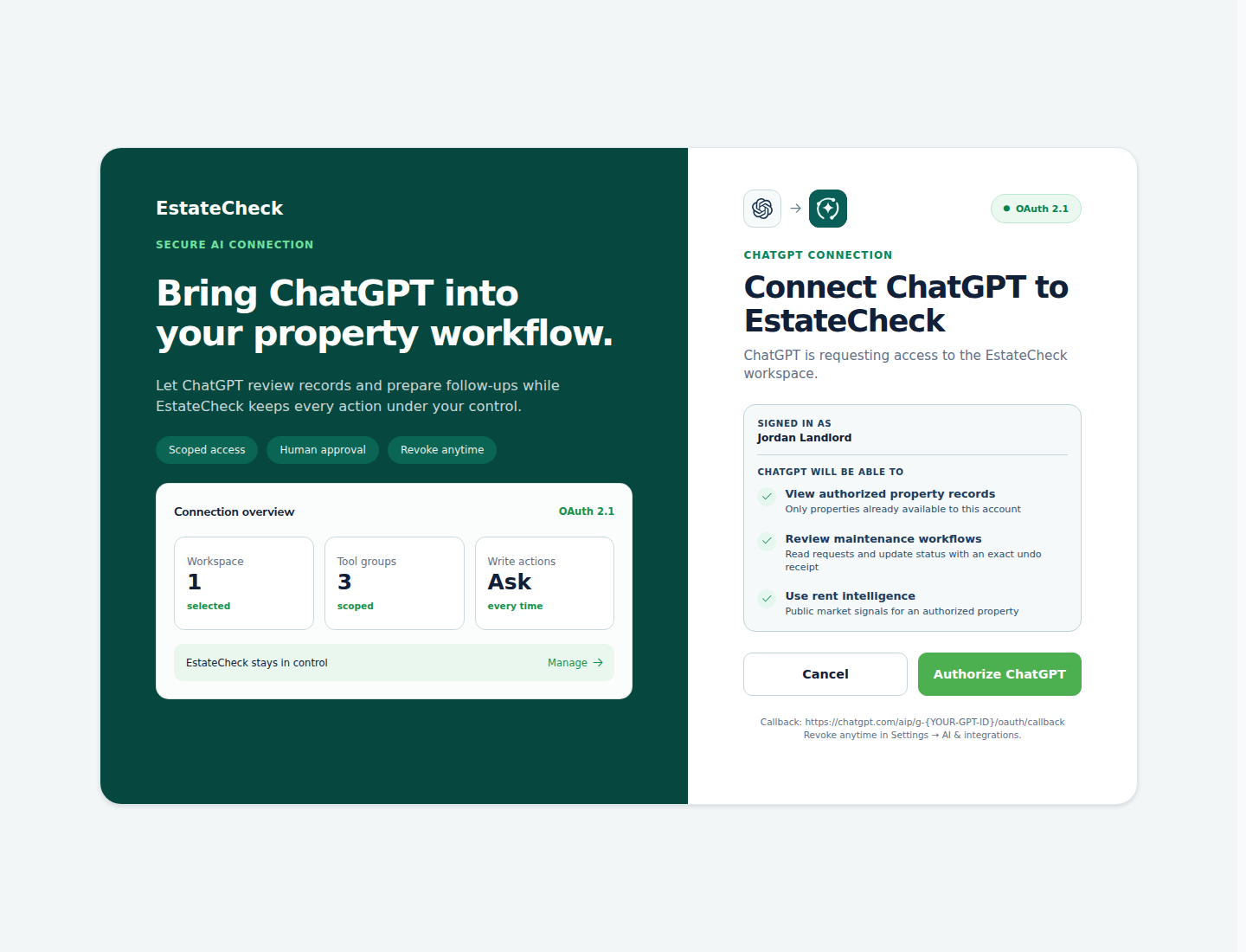
Choose the AI connection area from your landlord workspace and review the introductory explanation before continuing.
Review the authorization
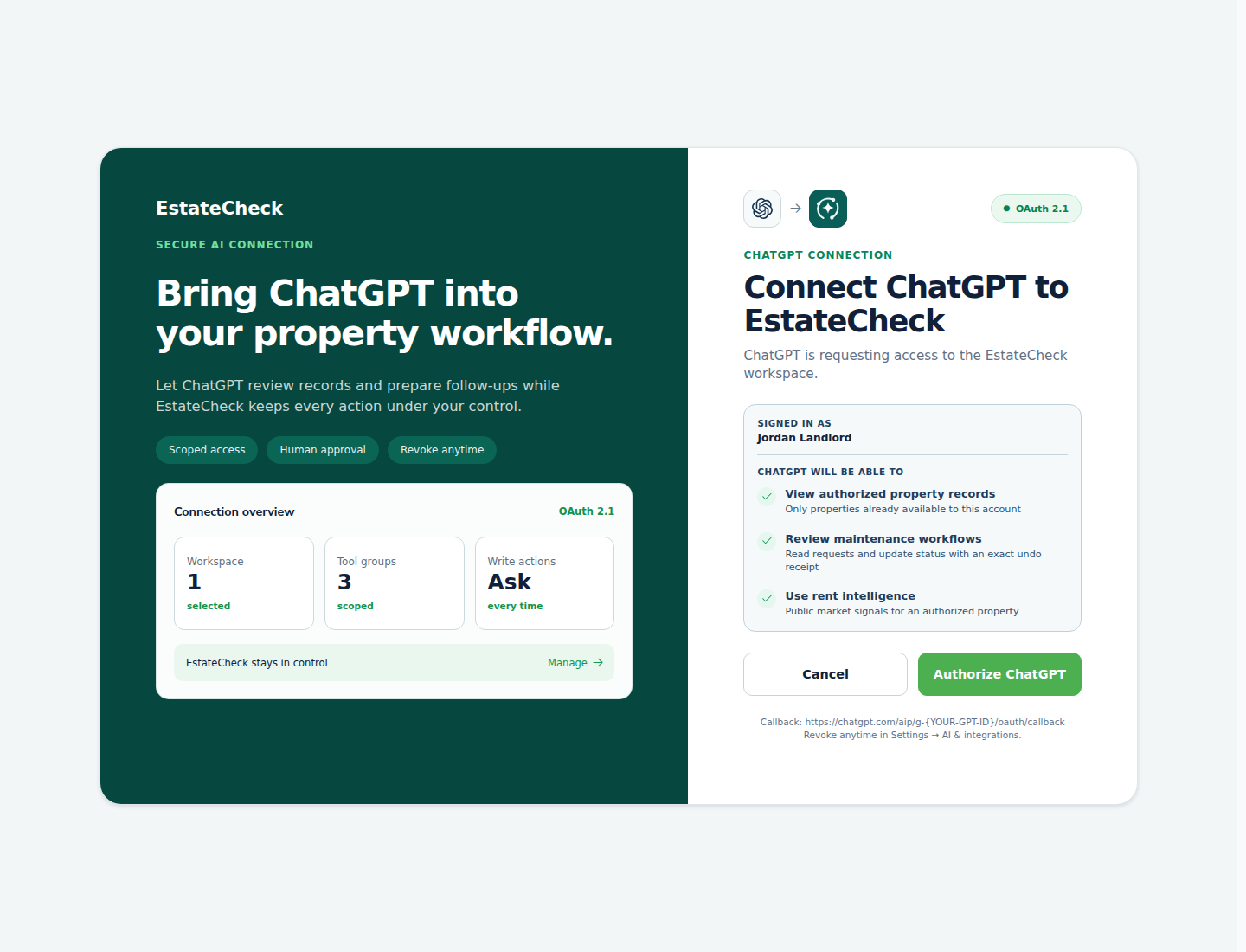
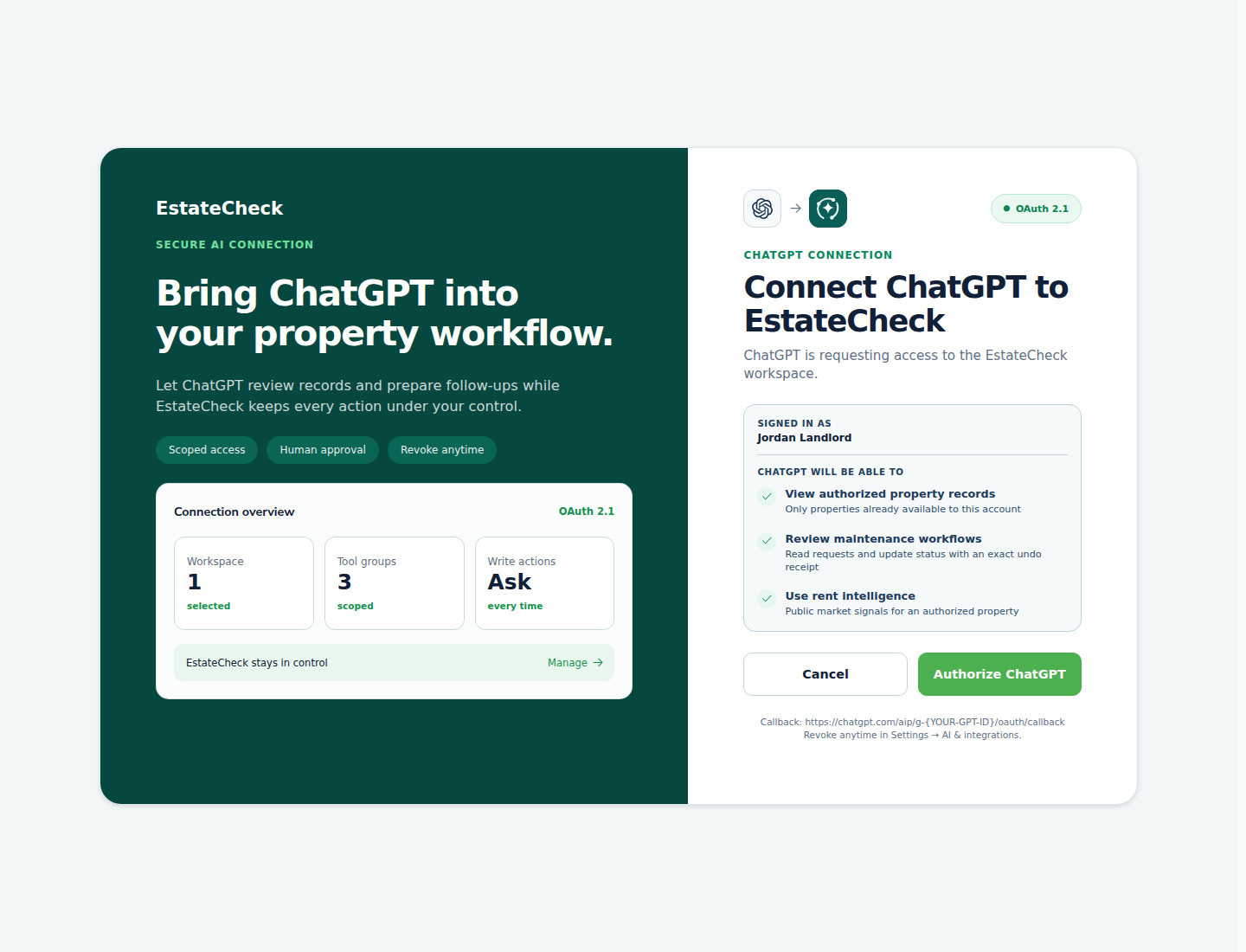
Confirm which client is requesting access and which EstatesCheck context it may use. Do not continue if the client or permission request is unexpected.
Complete the connection
Follow the authorization prompts and return to EstatesCheck. Confirm that the expected client is shown as connected before using it.
Use the AI Control Center
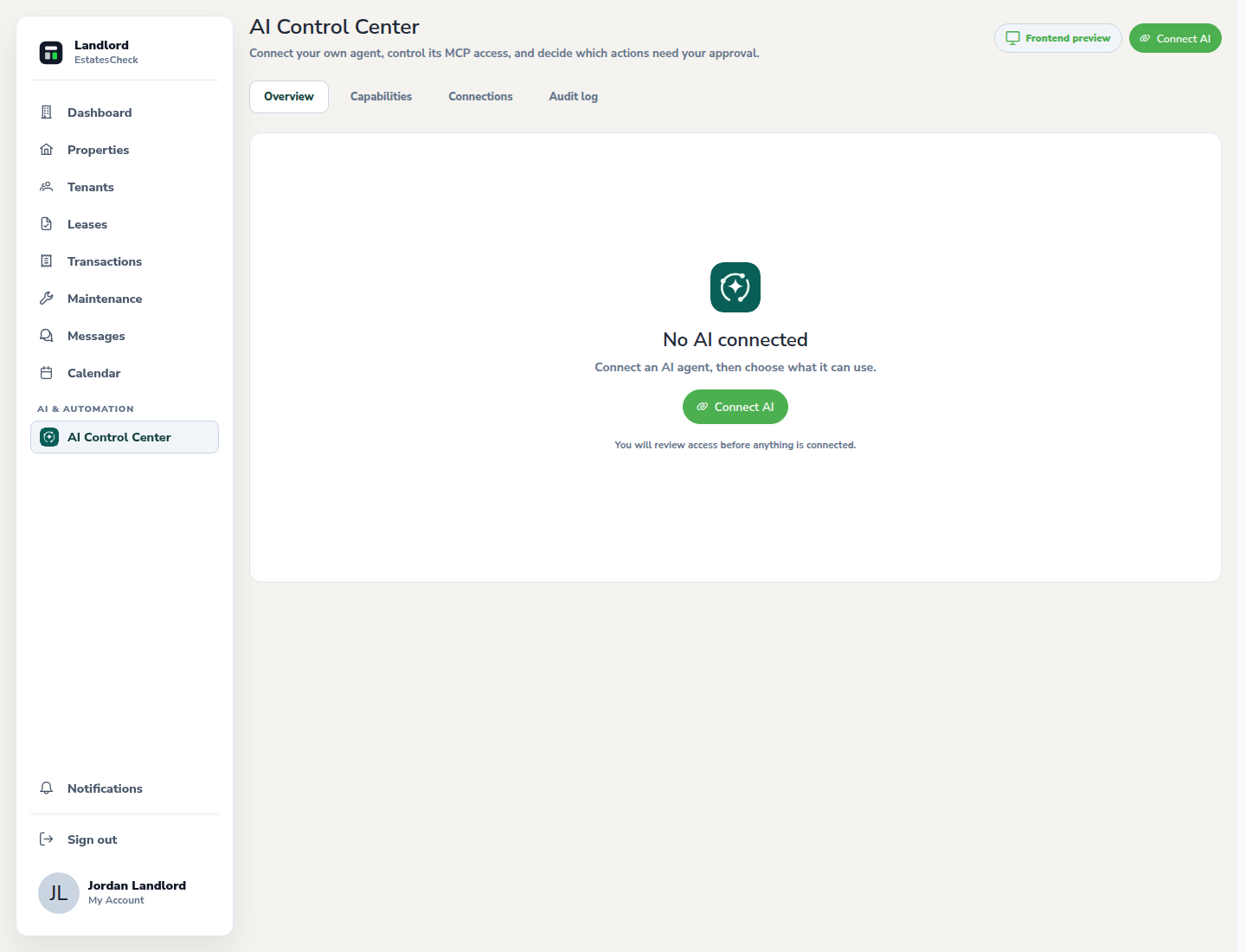
Review the connected client, permission controls, approvals, and available activity information. Keep access limited to the work you intend the client to perform.
Disconnect access when it is no longer needed
Use the disconnect control, confirm the action, and verify that the client is no longer shown as connected.
Common questions