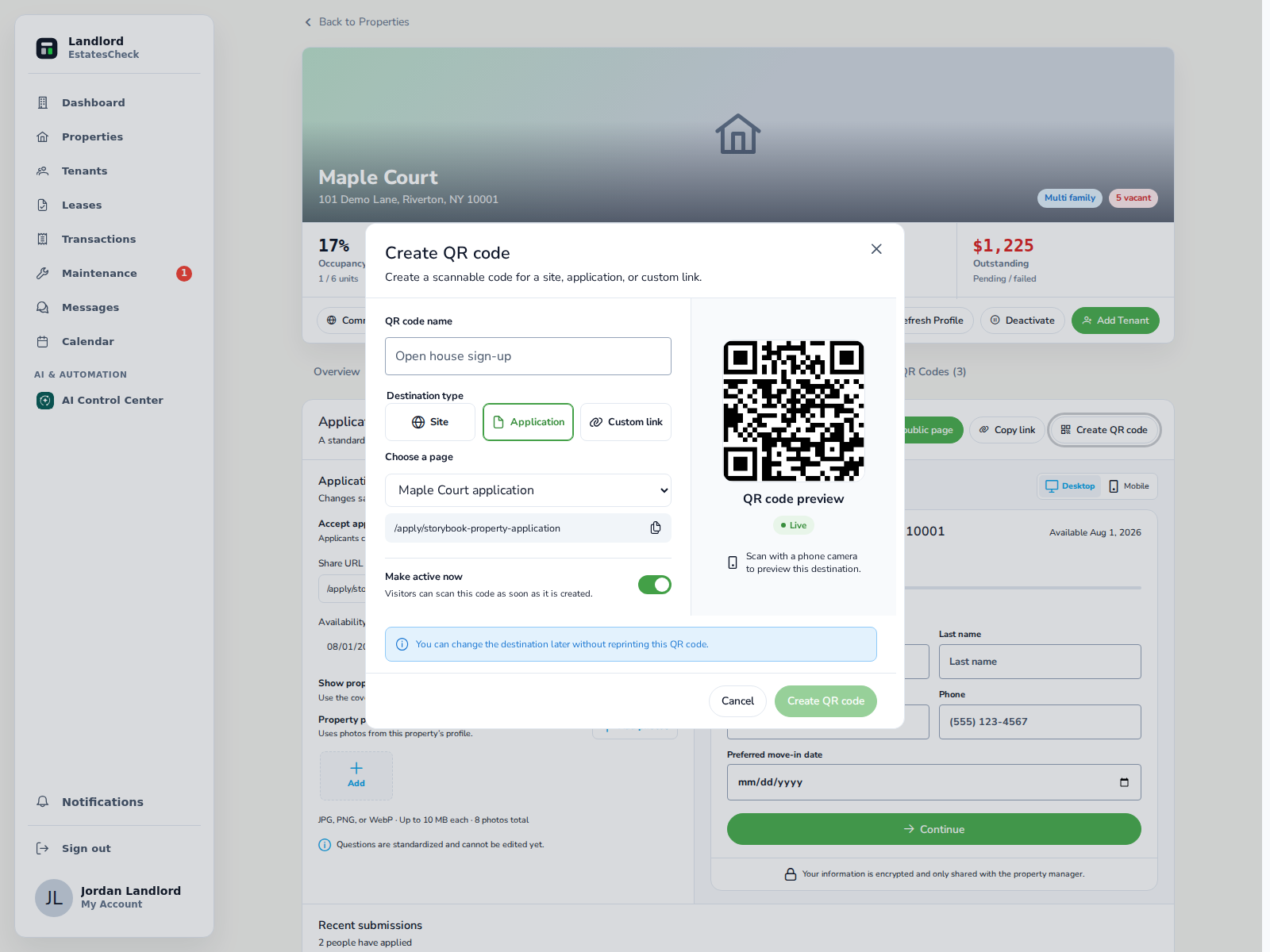
EstatesCheck now lets you create and manage QR codes from an individual property. Each code can open the property’s public Community Site, its public application page, or another complete HTTP or HTTPS link, giving landlords a convenient way to connect physical rental materials with the correct mobile page.
Create a code for a specific purpose
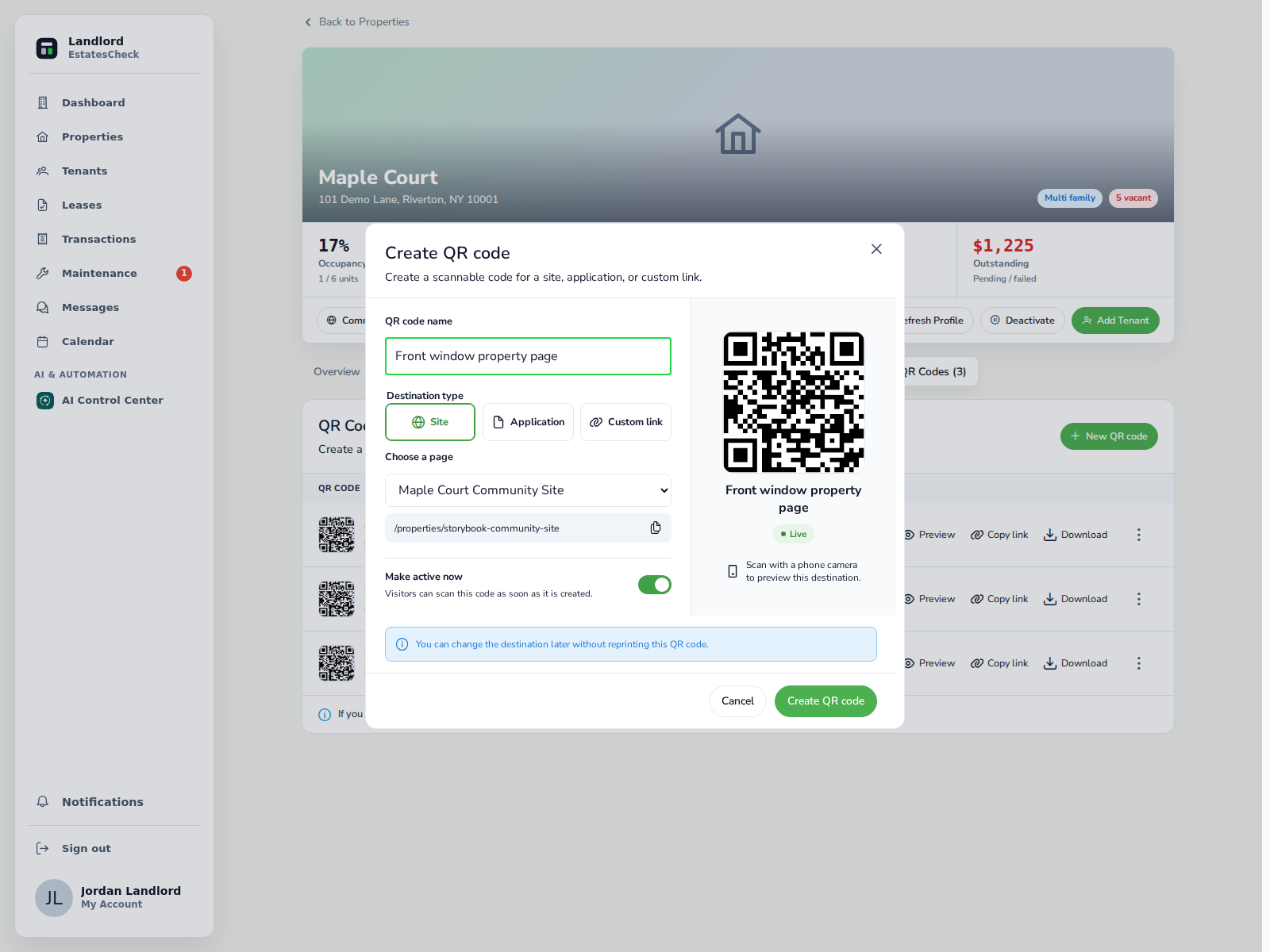
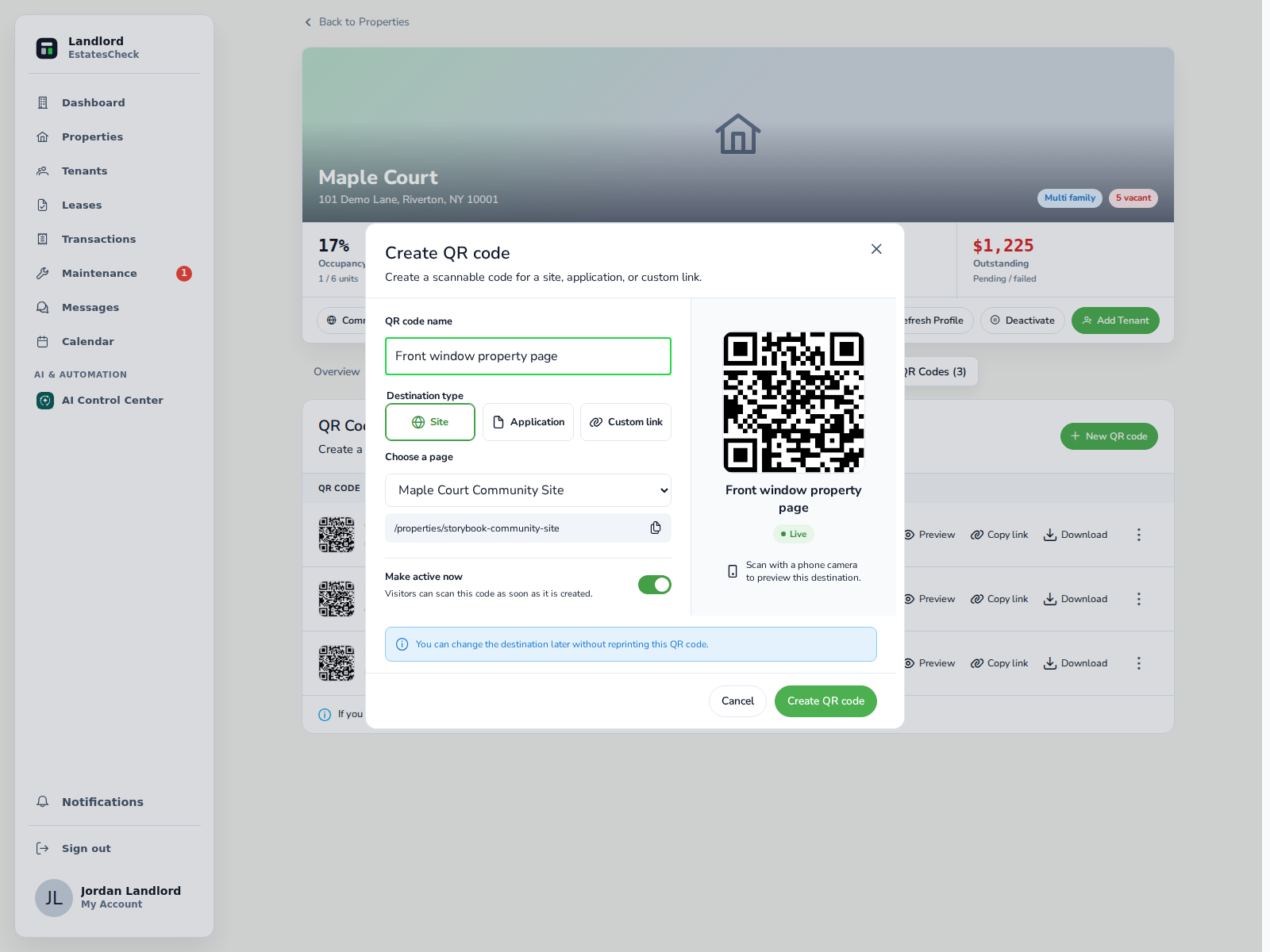
Open a property’s QR Codes tab and select New QR code. Give the code a name that explains where or how it will be used. “Front window property page” is more useful later than a generic name such as “QR code 1.”
If you use a custom link, enter the complete address beginning with https:// or http://. Preview the destination before creating the code, and use the active control to decide whether visitors should be able to open it immediately.
- Site opens the property’s published Community Site.
- Application opens the property’s public application page.
- Custom link opens another web page selected by the landlord.
Change the destination without replacing the code
The code uses a managed link. You can change where it sends visitors later without reprinting copies already placed at the property.
That is useful for reusable signs and printed materials, but the destination must continue to match the words beside the code. A sign labeled “Scan to view property details” should continue to open property information. It should not unexpectedly begin opening a payment page, private tenant portal, or unrelated website.
When the purpose changes substantially, create a separately named code and replace the printed material. Clear labeling builds more trust than redirecting one generic code to different actions.
Manage every code from the property
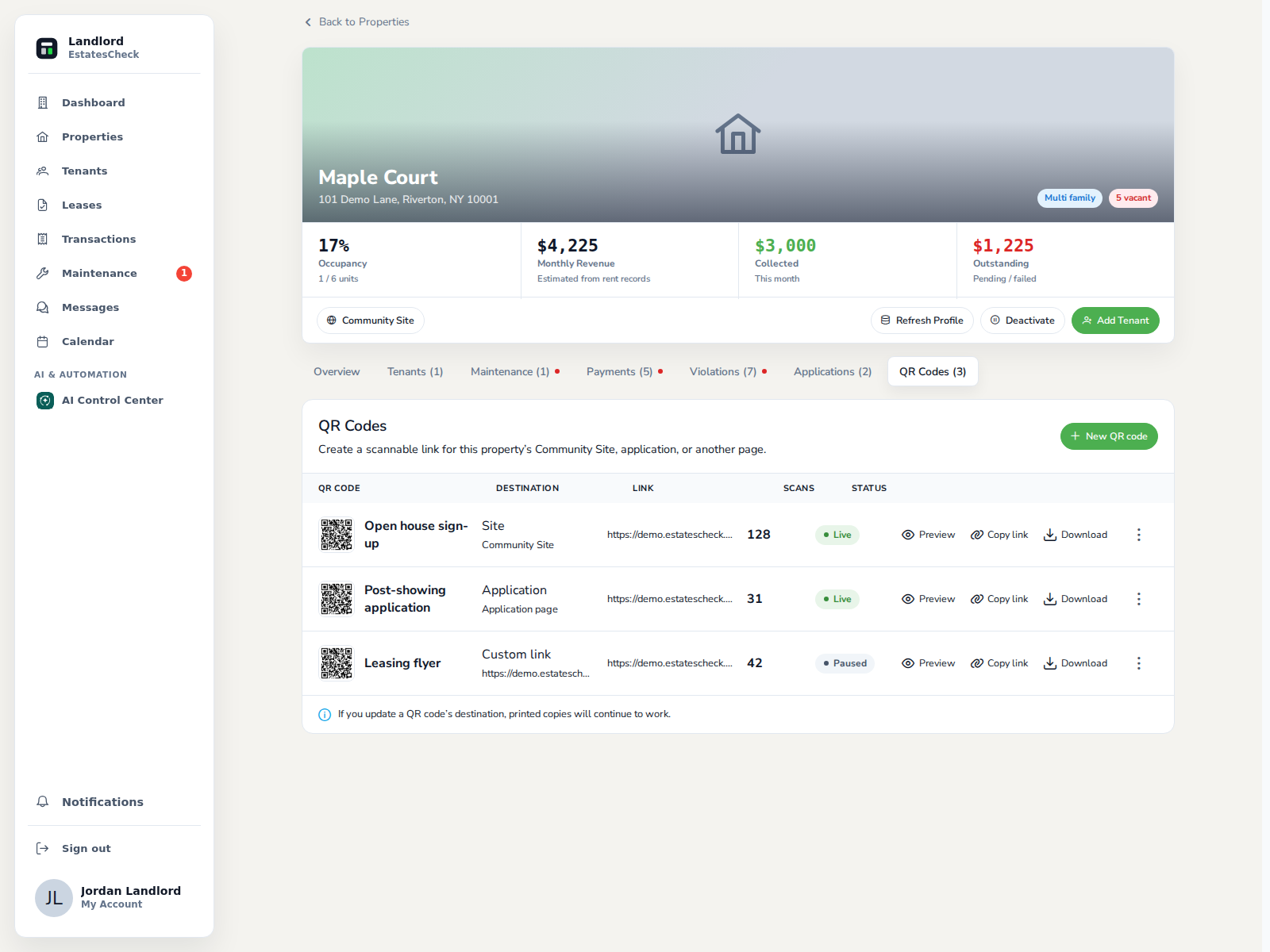
The QR Codes table displays the information and actions needed to manage each placement.
- Code name and visual preview
- Destination type and target
- Managed link
- Scan count
- Live status
- Preview, copy-link, and download actions
Make printed codes easier to use
Before posting a code, use the checklist below. For email, social media, and online listings, provide a normal clickable link. QR codes are most useful when they bridge a physical item to an online destination.
- Explain what it opens: “Scan to view property details.”
- Include a readable short URL as an alternative.
- Test the printed copy with more than one phone.
- Confirm that the destination is public and mobile-friendly.
- Avoid encoding passwords, access codes, or private applicant information.
- Inspect outdoor copies periodically for damage or another sticker covering the original.
Use the destination that matches the printed promise
Use Site for public property information, Application when the person is ready to begin the property-specific form, and Custom link for another safe public page that you control. Application pages should identify the property and housing provider before collecting personal information and should show current terms, permitted charges, and privacy information.
Read QR Code for a Rental Property: A Practical Landlord Guide , Rental Application QR Code: A Safe, Practical Setup Guide , and Where to Put a Rental Property QR Code for planning and safety guidance.